

How to Control the WordPress Heartbeat API and Reduce Server Usage
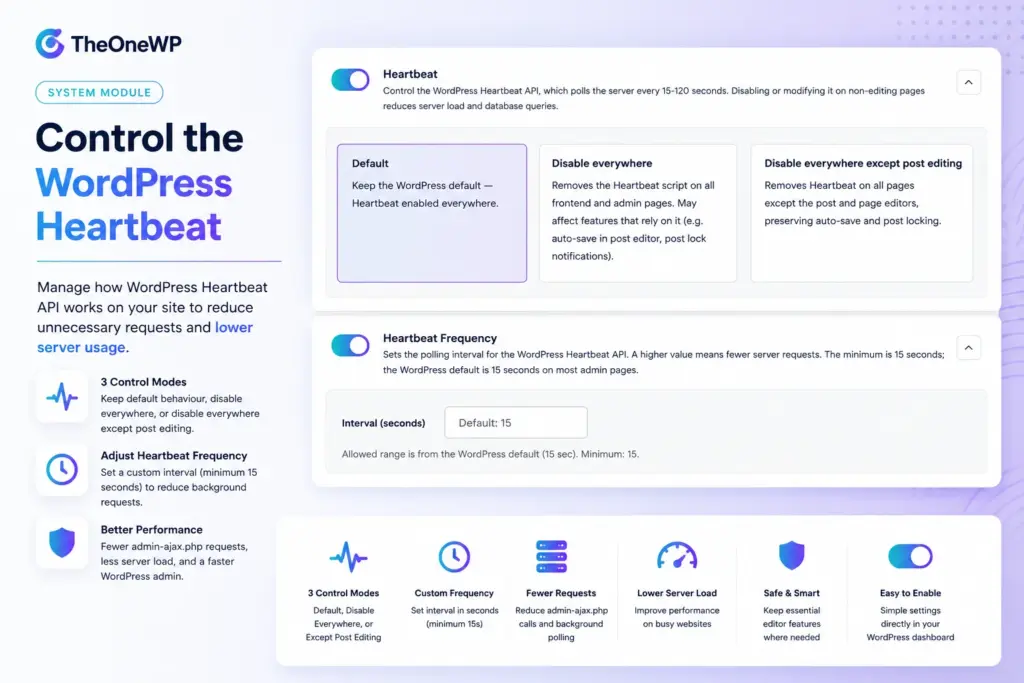
WordPress Heartbeat API control helps reduce unnecessary server requests by managing how often WordPress sends background AJAX calls from the dashboard and frontend. TheOneWP includes a Heartbeat module that lets administrators keep the default WordPress behaviour, disable Heartbeat everywhere, or disable it everywhere except post editing. It also includes a separate Heartbeat Frequency module for setting a custom polling interval. The module works with WordPress’s native Heartbeat API, so administrators can manage the behaviour without editing custom code.
By default, the WordPress Heartbeat API can poll the server every few seconds in some admin contexts. This background communication supports useful features such as autosave, post locking, and real-time admin updates. However, on busy websites, shared hosting plans, or admin-heavy workflows, uncontrolled Heartbeat requests can increase server usage and contribute to performance issues.
What Is the WordPress Heartbeat API?
The WordPress Heartbeat API is a built-in system that allows the browser and the server to communicate in the background while a user is logged in. It works through periodic AJAX requests to admin-ajax.php.
In practical terms, Heartbeat allows WordPress to perform tasks without requiring a full page refresh. For example, it can help with:
- Autosaving post drafts.
- Showing post lock notifications when another user is editing the same content.
- Keeping some admin interface data up to date.
- Supporting plugins that need periodic background communication.
This behaviour is useful, but it also means that WordPress may keep sending requests even when the user is simply sitting on an admin page. One user does not usually create a major problem. Many active users, multiple browser tabs, or resource-limited hosting can turn those small requests into noticeable server load.
Why Control the WordPress Heartbeat API?
Controlling the WordPress Heartbeat API is useful when background AJAX polling becomes more frequent than your website actually needs.
Heartbeat requests can affect performance in several situations:
- Several administrators or editors work in WordPress at the same time.
- Users keep multiple admin tabs open for long periods.
- The website runs on shared hosting with limited CPU resources.
- Plugins rely heavily on admin-side AJAX requests.
- The frontend loads Heartbeat even when it does not need it.
- The server already handles many dynamic requests.
Reducing or limiting Heartbeat can lower unnecessary requests to admin-ajax.php. As a result, the website may use fewer server resources during admin sessions, especially on dashboards where real-time communication is not essential.
The goal is not to disable useful WordPress features blindly. Instead, the goal is to keep Heartbeat active only where it provides real value and reduce it where it does not.
How the WordPress Heartbeat API Affects Server Usage
The Heartbeat API works by sending repeated requests from the browser to the server. Each request may load part of WordPress, run hooked functions, check data, and return a response.
One request is usually lightweight. However, repeated requests across multiple logged-in users can add up. This is especially true when:
- The website has many active editors.
- Plugins attach heavier processes to Heartbeat events.
- The hosting plan has strict CPU or entry-process limits.
- The admin dashboard stays open all day.
- Multiple tabs keep polling the server at the same time.
For this reason, Heartbeat optimization can be useful for reducing repeated background activity. It will not magically fix a badly configured server. However, it can remove a common source of avoidable admin-side requests.
WordPress Heartbeat Control Options in TheOneWP
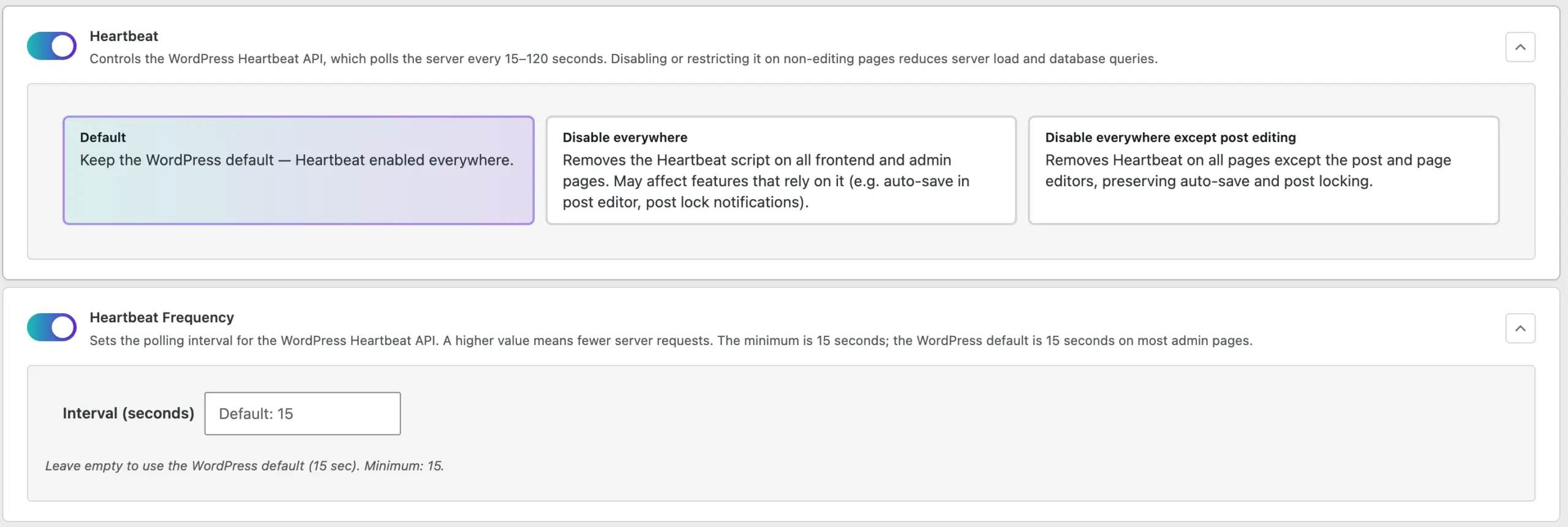
TheOneWP gives administrators three Heartbeat control modes. These options are designed to reduce unnecessary polling while preserving important editing features when needed.
Default
The Default option keeps the standard WordPress behaviour. In this mode, TheOneWP does not change the Heartbeat script.
This option is useful when:
- You do not have Heartbeat-related performance issues.
- Your hosting handles background admin requests comfortably.
- Your site relies on plugins that need Heartbeat in several admin areas.
- You prefer WordPress core behaviour without modification.
Disable Everywhere
The Disable everywhere option removes the Heartbeat script from frontend and admin pages. This is the most aggressive option.
It can help reduce server requests, but it may affect features that depend on Heartbeat, including:
- Post autosave.
- Post locking notifications.
- Some real-time admin updates.
- Plugin features that depend on Heartbeat polling.
Use this mode only when you understand the trade-off. Removing background requests is useful, but breaking an editing workflow just to save a few calls would be a very human way to win the wrong battle.
Disable Everywhere Except Post Editing
The Disable everywhere except post editing option removes Heartbeat from most areas while keeping it active on post and page editing screens.
This is usually the safest performance-focused option because it preserves the Heartbeat features that matter most during content editing, such as:
- Autosave.
- Post locks.
- Editor-related background updates.
At the same time, it disables Heartbeat on pages where it is often less necessary, such as general admin screens and frontend pages.
WordPress Heartbeat Frequency Control
TheOneWP also includes a separate Heartbeat Frequency module. Instead of removing Heartbeat entirely, this option changes how often WordPress sends polling requests.
A higher interval means fewer requests over time. For example, increasing the interval can reduce repeated background communication while still keeping Heartbeat available.
The module lets administrators enter a custom interval in seconds. The minimum supported value is 15 seconds, because the WordPress Heartbeat JavaScript client enforces that lower limit through the native heartbeat_settings filter.
For example:
- 15 seconds keeps a frequent polling interval.
- 30 seconds reduces request frequency.
- 60 seconds is more conservative for admin-heavy websites.
- 120 seconds can further reduce background requests where real-time updates are less important.
Leaving the field empty keeps the WordPress default behaviour.
When Should You Disable WordPress Heartbeat?
You should consider disabling or restricting WordPress Heartbeat when the website shows signs of excessive admin-side background requests.
Common signs include:
- High
admin-ajax.phpusage in hosting logs. - CPU spikes while users are logged into WordPress.
- Slow admin dashboard performance.
- Hosting warnings about resource usage.
- Several editors working at the same time.
- Multiple WordPress admin tabs left open for long periods.
However, disabling Heartbeat everywhere is not always the best first step. In many cases, restricting it to post editing or increasing the interval provides a better balance between performance and usability.
When Should You Keep WordPress Heartbeat Enabled?
Heartbeat is not useless. WordPress includes it for valid reasons, shocking as that may be in a universe where every performance tutorial tries to disable half the platform.
You should keep Heartbeat enabled, or at least active on post editing screens, when:
- Multiple authors edit content regularly.
- You rely on autosave during writing sessions.
- You need post lock notifications to prevent editing conflicts.
- Plugins on the site depend on Heartbeat for admin updates.
- Your hosting has no visible issue with Heartbeat requests.
For editorial websites, the safest configuration is often to disable Heartbeat everywhere except the editor. This keeps important writing protections active while reducing unnecessary requests elsewhere.
How to Control the WordPress Heartbeat API in TheOneWP
The setup only takes a few steps.
Step 1: Open the System Tab
First, go to TheOneWP in the WordPress admin sidebar and open the System tab.
Step 2: Enable the Heartbeat Module
Find the Heartbeat module and activate its main toggle.
Step 3: Choose a Heartbeat Mode
Select one of the available modes:
- Default — keep the normal WordPress behaviour.
- Disable everywhere — remove Heartbeat from frontend and admin pages.
- Disable everywhere except post editing — keep Heartbeat only where post editing features need it.
Step 4: Configure Heartbeat Frequency
To adjust the polling interval, enable the Heartbeat Frequency module. Then enter the desired interval in seconds.
The minimum value is 15 seconds. Higher values reduce how often WordPress sends Heartbeat requests.
Step 5: Save Changes
Finally, save the TheOneWP settings. The selected Heartbeat behaviour applies immediately according to the chosen mode and interval.
Best WordPress Heartbeat API Settings
The best Heartbeat configuration depends on the website, hosting environment, and editorial workflow.
Here are practical starting points:
- Small brochure website — disable Heartbeat everywhere or restrict it to post editing.
- Blog with one author — restrict Heartbeat to post editing and increase the interval.
- Editorial website with multiple writers — keep Heartbeat active on post editing screens.
- WooCommerce website — test carefully before disabling Heartbeat everywhere, because plugins may rely on admin-side background updates.
- Shared hosting website — restrict Heartbeat and set a longer interval to reduce repeated requests.
- Development or staging site — test the most restrictive option before applying it to production.
As a general rule, the balanced option is:
- Disable Heartbeat everywhere except post editing.
- Set a longer Heartbeat interval, such as 30 or 60 seconds.
- Monitor whether autosave, editing, and plugin workflows still behave correctly.
Common Mistakes When Managing WordPress Heartbeat
Heartbeat optimization is simple, but it is still possible to misconfigure it.
Disabling Heartbeat Everywhere Without Testing
This can reduce background requests, but it may also affect autosave, post locks, and plugins that depend on Heartbeat.
Ignoring Plugin Dependencies
Some plugins use Heartbeat for admin updates. Therefore, always test important plugin workflows after changing Heartbeat settings.
Using the Lowest Interval Without a Reason
If the goal is to reduce server requests, keeping a very frequent interval may not help much. A higher interval usually makes more sense for performance-focused setups.
Assuming Heartbeat Is the Only Cause of High Server Usage
Heartbeat can contribute to server load, but it is not always the main problem. Heavy plugins, poor hosting, uncached dynamic pages, background jobs, and database issues can also cause resource usage. Reality, annoyingly, prefers multiple causes.
WordPress Heartbeat API, Autosave, and Post Locking
Autosave and post locking are the two main reasons to avoid disabling Heartbeat blindly on editing screens.
Autosave helps preserve draft changes while the user edits content. Post locking helps prevent two users from editing the same post at the same time without noticing.
TheOneWP’s Disable everywhere except post editing option is designed for this exact reason. It reduces Heartbeat usage across the site while preserving the editing screens where WordPress relies on Heartbeat most.
If your website has writers, editors, or clients editing content regularly, this mode usually offers a safer balance than disabling Heartbeat everywhere.
Why Use TheOneWP for Heartbeat Control?
Heartbeat can be controlled manually with custom code, but doing so usually requires editing theme files or adding a custom snippet. That approach works, but it can be inconvenient to manage and easy to forget later.
TheOneWP provides Heartbeat control as one optional module inside a broader WordPress toolkit. As a result, administrators can adjust Heartbeat behaviour from the dashboard without maintaining a custom code snippet.
The module also separates two related controls:
- Heartbeat — controls where the Heartbeat script runs.
- Heartbeat Frequency — controls how often Heartbeat sends requests.
This separation makes the workflow clearer. You can restrict Heartbeat, adjust its frequency, or combine both approaches depending on the website’s needs.
Final Thoughts on WordPress Heartbeat API Control
WordPress Heartbeat API control is not about disabling a random core feature for the thrill of watching a performance score move by one pixel. It is about reducing unnecessary background requests while preserving the parts of Heartbeat that still matter.
TheOneWP lets administrators keep the default behaviour, disable Heartbeat everywhere, or disable it everywhere except post editing. In addition, the Heartbeat Frequency module can increase the polling interval to reduce repeated server requests over time.
Used carefully, these settings can help lower admin-side server usage, reduce unnecessary admin-ajax.php activity, and keep WordPress editing workflows stable.