

How to Create WordPress Custom Admin Columns Without Code
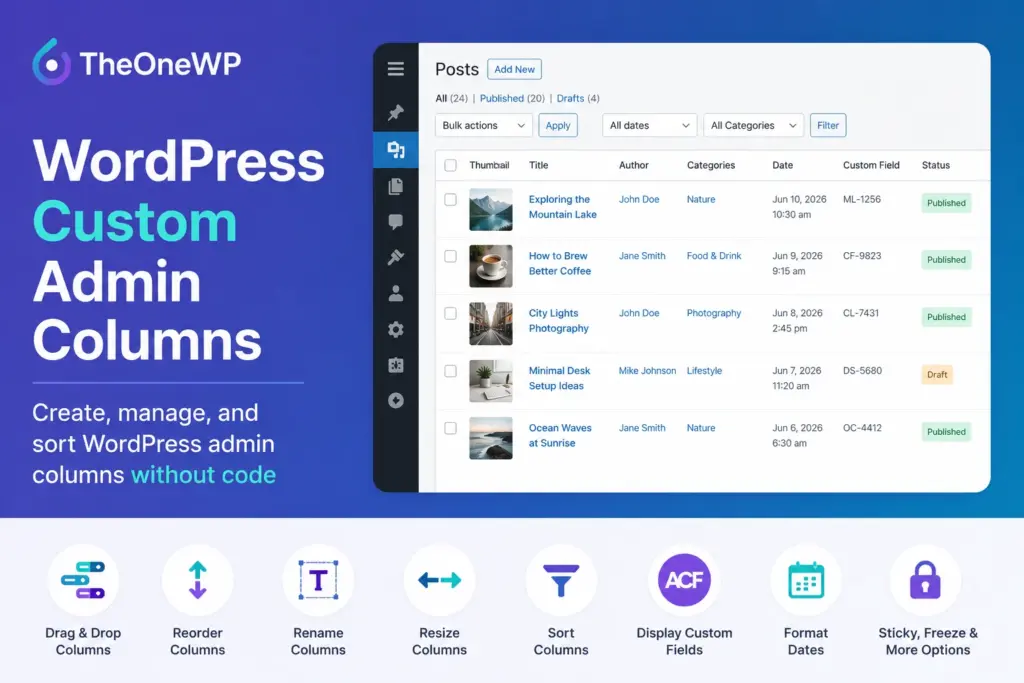
WordPress custom admin columns let you display the most useful information directly in the administration tables for posts, pages, media files, users, taxonomies, and custom post types. By default, WordPress shows only a limited selection of data, forcing administrators to open individual items just to check basic details. TheOneWP solves this limitation with its Custom Content Columns module, allowing you to activate, remove, rename, reorder, resize, and sort columns through a visual drag-and-drop interface.
In addition, the module can discover custom fields and columns registered by themes or plugins. Therefore, you can expose useful post meta, user meta, and term meta values inside the WordPress backend without writing custom PHP filters or modifying functions.php.
Why Use WordPress Custom Admin Columns?
WordPress list tables are the screens used to manage posts, pages, media files, users, categories, tags, and custom content types. These tables are intentionally simple, but that simplicity quickly becomes restrictive on websites with large amounts of structured content.
For example, a default Posts screen usually shows the title, author, categories, tags, comments, and publication date. However, it may not display information such as:
- The featured image.
- The post ID or URL slug.
- The publication status.
- The date of the last modification.
- A custom product code or internal reference.
- A value stored by Advanced Custom Fields, JetEngine, or another plugin.
- The template assigned to a page.
- Whether comments and pingbacks are enabled.
Without custom columns in the WordPress admin, administrators must open each item to check those values. On a small blog, this is merely inconvenient. On an editorial website, membership platform, directory, e-commerce project, or custom WordPress application, it becomes a recurring waste of time.
Developers can customize these tables with WordPress hooks such as manage_{$post_type}_posts_columns. Nevertheless, each additional column normally requires PHP code for registration, rendering, and optional sorting. TheOneWP provides the same practical result through a visual management interface.
Which Screens Support WordPress Custom Admin Columns?
The Custom Content Columns module supports several types of WordPress list tables. Furthermore, you can enable the module only for the content areas you actually want to customize.
Custom WordPress Admin Columns for Posts and Pages
You can create independent column configurations for posts, pages, and public custom post types. Consequently, the Posts screen can use one layout while Products, Projects, Properties, Events, or Portfolio Items use completely different columns.
Depending on the selected post type, TheOneWP can display columns such as:
- Featured image.
- Title and author.
- Connected taxonomies.
- Excerpt.
- Comments.
- Parent content.
- Publication date.
- Last modified date.
- Slug.
- Post ID.
- Post status.
- Password protection status.
- Permalink.
- Discussion status.
- Assigned page template.
WordPress Admin Table Columns for the Media Library
The module can also customize the Media Library list view. In addition to standard WordPress information, it can display practical file details directly in the table:
- File size.
- Image resolution.
- MIME type.
- Direct file URL.
- Alternative text.
- Caption.
- Description.
- Author.
- Parent content.
- Upload date.
This is particularly useful for content-heavy websites where administrators need to locate oversized images, missing alt text, incorrect file types, or media attached to specific pages.
Custom Columns for Categories, Tags, and Taxonomies
Taxonomy tables can be customized independently as well. TheOneWP supports standard taxonomies such as categories and tags, together with custom taxonomies registered by themes and plugins.
Available information can include:
- Term name.
- Description.
- Slug.
- Content count.
- Term ID.
- Parent term for hierarchical taxonomies.
- Custom term meta values.
WordPress Backend Columns for Users
The Users screen can be configured with standard and custom user information. Available columns include username, display name, email address, role, post count, user ID, registration date, website, and discovered user meta fields.
The module also integrates with TheOneWP’s Last Login module. When both modules are active, the recorded login timestamp can be added to the Users table and configured like the other columns.
How to Configure WordPress Custom Admin Columns in TheOneWP
The module replaces manual column development with a visual workflow. Here is how to configure it.
Step 1: Enable Custom Content Columns
First, open TheOneWP from the WordPress admin sidebar and select the Content tab. Find the Custom Content Columns module and activate its main toggle.
Step 2: Select the WordPress Content Types
Next, expand the module settings and choose where custom columns should be available. You can enable individual:
- Post types.
- Media Library screens.
- Taxonomies.
- User tables.
Each area is controlled independently. For example, you can enable custom columns for Posts, Products, Media, and Users while leaving Pages and Categories unchanged.
Step 3: Open the WordPress Column Manager
After saving the module settings, TheOneWP adds a Columns management link for each enabled content type. Open that link to access the dedicated drag-and-drop editor.
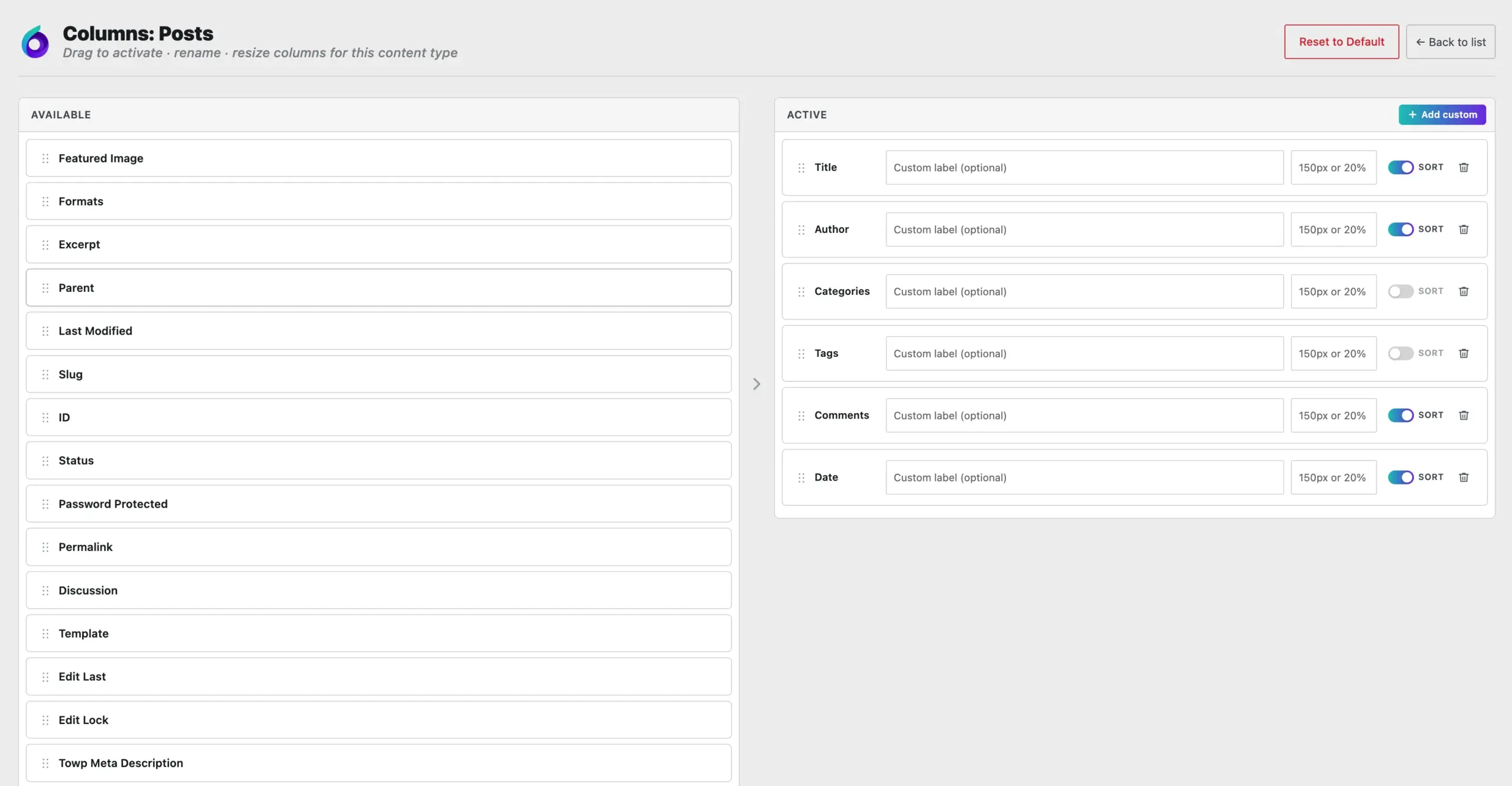
The editor contains two main areas:
- Available — columns that exist but are not currently displayed.
- Active — columns currently visible in the selected WordPress list table.
Step 4: Reorder WordPress Admin Table Columns
Drag a column from Available to Active to display it. To remove a column, move it back or use the remove button.
You can also reorder active columns by dragging them into the desired sequence. The checkbox column remains first because WordPress uses it for bulk actions, but the remaining columns can be arranged around your workflow.
Step 5: Rename and Resize Custom Admin Columns
Every active column can have an optional custom label. Therefore, a technical database label such as property_reference can be displayed as Reference, while postmeta_event_start can become Start Date.
You can also assign a custom width using standard CSS units, including:
px%emremvwvh
For example, you could set a thumbnail column to 80px, a title column to 30%, and an internal reference column to 120px.
Step 6: Create Sortable WordPress Admin Columns
Each active column includes a sorting option. When enabled, administrators can click the column header to reorder the list using that value.
WordPress columns that are sortable by default remain supported. In addition, TheOneWP can make discovered post meta, user meta, and term meta columns sortable by connecting the table header to the appropriate WordPress query.
Sorting a custom field uses the value stored in the database. Therefore, fields should use consistent values if they are intended for administrative sorting.
Step 7: Save the Column Configuration
Column changes are saved automatically while you work. Once the configuration is complete, return to the relevant content list to see the updated table.
How to Display Custom Fields in WordPress Admin Columns
One of the most useful features of the module is its ability to discover metadata stored by WordPress, themes, and external plugins.
TheOneWP can search for:
- Post meta associated with a post type.
- User meta stored for WordPress accounts.
- Term meta connected to categories, tags, or custom taxonomies.
- Meta fields registered through the native WordPress metadata API.
- Columns registered by other plugins through WordPress list-table hooks.
This means that fields created by tools such as custom field frameworks, membership systems, directory plugins, or custom development may become available in the visual column manager without requiring additional integration code.
For example, a real estate website could display:
- Property reference.
- Price.
- City.
- Property status.
- Number of bedrooms.
- Assigned agent.
Similarly, an event website could display the event date, venue, ticket status, and external registration URL directly in the Events table.
How to Add a Custom WordPress Admin Column from a Meta Key
If a field is not detected automatically, TheOneWP also lets you add it manually using its database meta key.
Step 1: Click Add Custom
Open the column manager for the relevant post type, taxonomy, or user table. Then click Add Custom above the Active columns panel.
Step 2: Enter the Column Name
Enter the human-readable label you want to display in the WordPress table, such as Customer Code, Expiration Date, or Internal Rating.
Step 3: Enter the Meta Key
Enter the exact meta key used in the WordPress database. For example:
_customer_codeevent_start_dateproperty_referencemembership_expiration
The module reads the stored value through WordPress’s native metadata functions, such as get_post_meta(), rather than changing the original field or duplicating its data.
Step 4: Set an Optional Column Width
Assign a width if the field requires more or less space than the browser would otherwise provide. This is particularly useful for IDs, dates, URLs, thumbnails, or long descriptive values.
Step 5: Identify Date and Time Values
If the custom field contains a date or timestamp, enable the date option. TheOneWP can interpret both Unix timestamps and recognizable date strings.
You can then select a predefined format or enter a custom PHP-compatible date format. If the value cannot be interpreted as a date, the module safely displays the original stored value instead.
Format Dates in WordPress Custom Admin Columns
Date values are often stored in inconsistent formats. One plugin may save a Unix timestamp, while another stores a value such as 2026-06-10 14:30:00. Showing those raw database values inside the admin table is functional, but not particularly readable.
TheOneWP provides date formatting controls for supported native columns and custom metadata columns. Available formats include:
- The WordPress site date and time format.
- The WordPress site date format only.
- Numeric date formats.
- Month-name formats.
- Date and time combinations.
- Custom date formats.
- Raw stored values.
For example, the stored timestamp can be displayed as:
June 10, 202610/06/202610 June 2026 - 14:30
This makes administrative tables easier to scan while leaving the underlying database value untouched.
Control WordPress Admin Table Columns and Behaviour
Adding more columns introduces another problem: wide admin tables can become difficult to navigate. The Custom Content Columns module includes three table behaviour options to address this.
Use a Sticky WordPress Admin Table Header
The sticky header option keeps column names visible while scrolling vertically. This is useful when a list contains many posts, users, terms, or media files and the administrator would otherwise lose track of which value belongs to which column.
Disable Horizontal Scrolling
This option compresses the table columns so they fit within the available screen width. It works well when the table contains a manageable number of short values.
However, heavily populated tables may become too compressed. In that case, horizontal scrolling combined with fixed column widths is usually the more practical option.
Freeze the First WordPress Backend Columns
The module can freeze the first columns while the rest of the table scrolls horizontally. You can choose how many columns remain fixed, up to the limit provided in the settings.
For example, you can keep the checkbox, featured image, and title visible while scrolling through pricing, taxonomy, date, status, and custom field columns.
Common Use Cases for WordPress Custom Admin Columns
Custom columns can improve almost any WordPress project that contains more than a handful of entries.
- Editorial websites — display featured images, authors, statuses, modification dates, categories, and editorial fields.
- E-commerce websites — expose product references, brands, availability data, and custom product metadata.
- Real estate websites — show prices, cities, property types, agents, and listing statuses.
- Event websites — display event dates, venues, registration links, and ticket availability.
- Membership platforms — show registration dates, roles, subscription data, and custom user fields.
- Media-heavy websites — identify file sizes, image dimensions, MIME types, missing alt text, and attachment URLs.
- Directories — expose location, category, verification status, contact information, and internal references.
- Agency websites — simplify the backend for clients by showing only the information relevant to their workflow.
Use Custom WordPress Admin Columns for Client Websites
More columns are not always better. In fact, the real benefit of custom admin columns is the ability to remove unnecessary information as well as add useful data.
A developer may understand technical columns, IDs, taxonomy relationships, and plugin-specific metadata. A client who only needs to update a restaurant menu or property listing should not have to navigate the same backend complexity.
With TheOneWP, each content type can use a focused table layout. For example, a restaurant menu could show only:
- Dish image.
- Dish name.
- Menu category.
- Price.
- Availability.
- Last modified date.
This creates a more understandable WordPress administration experience without replacing the native content management system.
Why Create Custom Columns in WordPress Admin Without Code?
Custom admin columns can be built manually with PHP, and experienced developers may still prefer code for highly specialized output. However, a complete implementation normally involves several separate tasks:
- Registering the column.
- Rendering its content.
- Adding sorting support.
- Modifying the underlying query.
- Applying widths and styles.
- Handling different post types and admin screens.
- Maintaining compatibility with future WordPress updates.
A dedicated single-purpose plugin can also provide admin column management, but it introduces another dependency to install, update, configure, and audit.
TheOneWP includes this functionality as one optional module inside a broader WordPress toolkit. Therefore, you can activate Custom Content Columns when needed and disable it when it is not, without adding another standalone plugin to the website.
Final Thoughts on WordPress Custom Admin Columns
WordPress custom admin columns turn generic content tables into practical management interfaces built around the actual website. Instead of opening posts, users, terms, or media files one by one, administrators can see the information they need directly from the corresponding list screen.
The Custom Content Columns module in TheOneWP provides control over active columns, order, labels, widths, sorting, date formats, custom metadata, sticky headers, horizontal scrolling, and frozen columns. Most importantly, it preserves WordPress’s native administration workflow rather than replacing it with a separate content system.
The result is a cleaner backend, faster content management, and fewer repetitive clicks.