

How to Manage WordPress Files Without cPanel or FTP
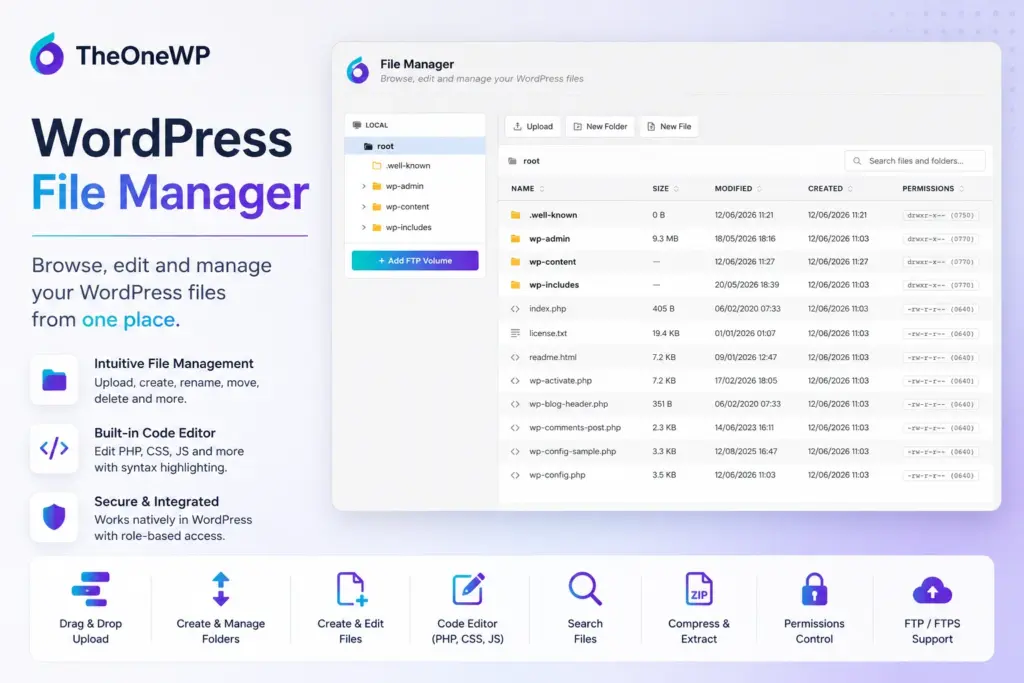
WordPress file manager tools let administrators browse, upload, edit, move, download, and organize website files directly from the WordPress dashboard. Normally, these tasks require cPanel, another hosting control panel, or a separate FTP client. TheOneWP removes that extra step with a complete File Manager module for local server files and remote FTP or FTPS volumes.
In addition, the module combines a visual directory tree, AJAX navigation, file operations, archive management, recursive search, image previews, folder size calculation, and a CodeMirror-powered text editor. TheOneWP also limits access to administrators with the manage_options capability and checks WordPress nonces before it performs sensitive actions.
Why Use a WordPress File Manager?
Managing WordPress files often means switching between several systems. For example, you may edit content inside WordPress, open cPanel to access the server, launch an FTP application to transfer files, and use a separate code editor for small changes.
This workflow works for occasional maintenance. However, it quickly becomes inefficient when you regularly need to:
- Upload theme or plugin assets.
- Inspect files inside
wp-content. - Edit configuration, CSS, JavaScript, JSON, or text files.
- Create folders and placeholder files.
- Compress or extract archives.
- Move files between local and remote servers.
- Find a file without knowing its exact directory.
- Download a complete folder for backup or inspection.
A WordPress file manager centralizes these operations inside the administration area. As a result, developers and site administrators can complete routine file tasks without repeatedly leaving WordPress.
TheOneWP includes File Manager as an optional module inside its collection of modular WordPress tools. You can activate it only when you need it. Furthermore, you can choose whether WordPress displays it inside the TheOneWP submenu or as a separate top-level admin menu item.
WordPress File Manager Features in TheOneWP
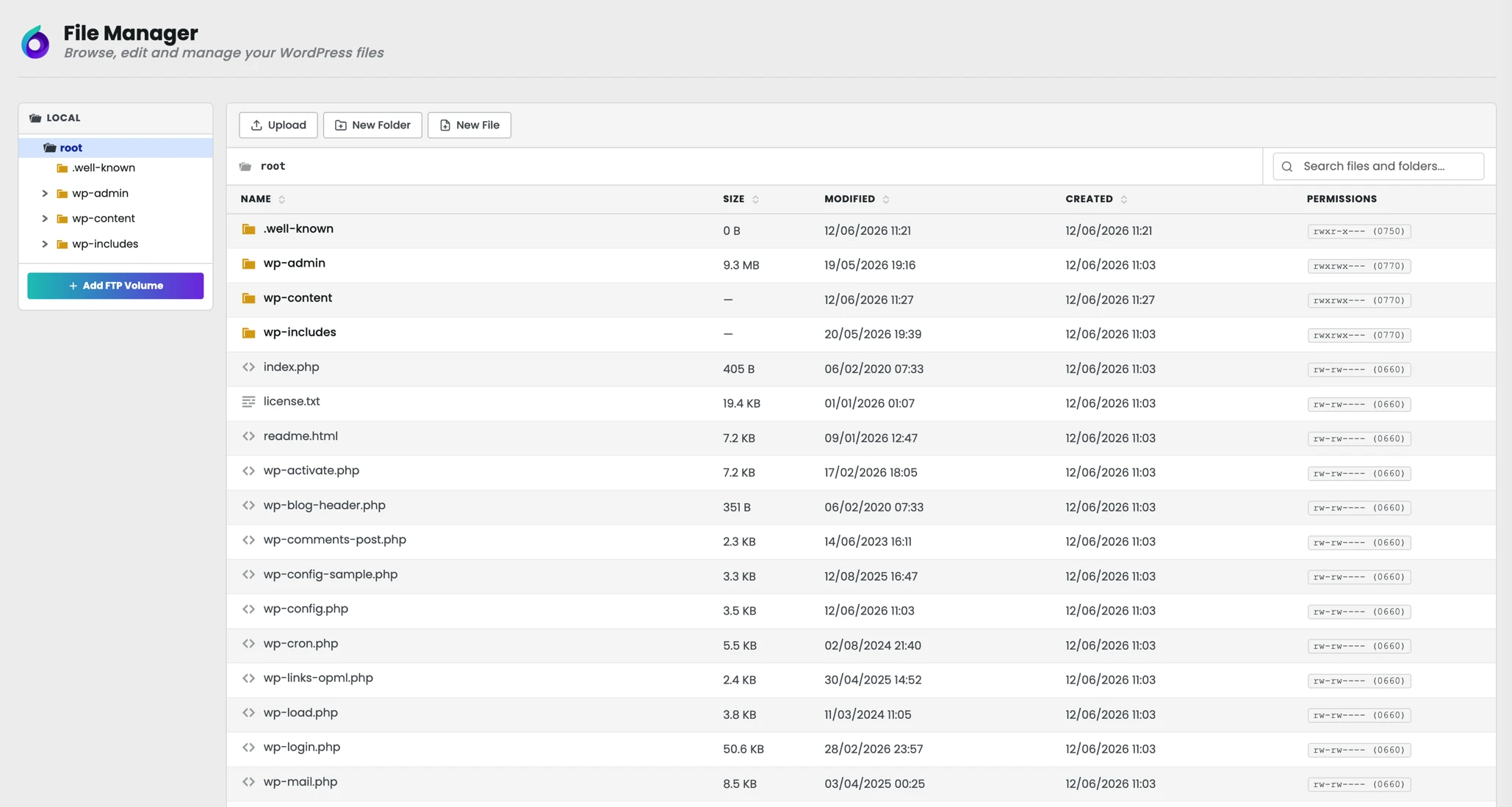
The File Manager module supports both local WordPress files and remote FTP or FTPS connections. Its interface uses a directory tree and a file table, so users can navigate folders while keeping the current location visible.
Browse WordPress Files and Folders
The local file system starts from the WordPress installation directory. From there, administrators can navigate folders through:
- A visual folder tree.
- Clickable breadcrumbs.
- AJAX directory loading.
- Direct folder navigation.
- File and folder icons based on content type.
The table shows practical information for each item, including its name, size, modification date, creation date where available, and file permissions.
Create New Files and Folders
The module lets administrators create folders and new files directly inside the current directory. Therefore, you can prepare custom assets, configuration files, templates, logs, or development resources without opening an external file manager.
TheOneWP sanitizes file and folder names to block path separators and traversal attempts. At the same time, it still supports legitimate hidden files whose names begin with a period.
Upload Individual Files or Complete Folders
TheOneWP supports both standard file uploads and complete folder uploads. The module places uploaded items inside the currently selected directory, so you can send files directly to the required location instead of routing them through the WordPress Media Library.
This distinction matters because the Media Library primarily manages attachments and public media. By contrast, a server file manager works better for assets such as:
- Theme resources.
- Plugin data files.
- JSON configuration files.
- Font files.
- JavaScript and CSS assets.
- Private documents.
- Development exports.
Rename, Copy, Move, and Delete Files
Administrators can rename, copy, duplicate, move, or delete files and folders directly from the interface. In addition, they can select multiple items for supported bulk operations.
The interface also supports drag-and-drop movement during folder navigation. Consequently, users can reorganize directories without manually entering destination paths.
Download Files and Folders
You can download individual files directly from the file table. When you download a folder, TheOneWP creates a ZIP archive and sends the complete directory as a single file.
This feature helps when you need to retrieve:
- A child theme.
- A custom plugin.
- An uploads subdirectory.
- A collection of logs.
- A project folder.
Calculate Folder Size
TheOneWP calculates folder sizes recursively only when an administrator requests the information. Therefore, the module does not scan every directory during each page load.
This approach helps you identify unusually large folders, old backups, oversized caches, abandoned exports, and other files that consume server storage.
Edit WordPress Files with the Built-In Code Editor
The File Manager includes an inline editor based on the CodeMirror integration available in WordPress. Administrators can open editable text and source files directly from the file list, change their contents, and save them without downloading them first.
The editor supports common file types such as:
- PHP.
- JavaScript and TypeScript.
- CSS, SCSS, and Less.
- HTML and XML.
- JSON.
- YAML.
- Markdown.
- SQL.
- Shell scripts.
- INI and configuration files.
- Plain text and log files.
However, the editor excludes binary formats such as images, videos, archives, fonts, PDFs, and office documents. This prevents users from accidentally treating binary data as editable text and corrupting the file.
Syntax-Aware Editing
The editor selects an appropriate MIME type from the file extension. As a result, CodeMirror can apply syntax-aware formatting to supported languages instead of presenting every file as plain text.
Dark Mode and Fullscreen Editing
The editor includes dark mode and fullscreen controls. Moreover, the browser remembers the dark mode preference through local storage, while fullscreen mode provides more room for longer files.
Keyboard Saving
Administrators can save files through the interface button or with the familiar Ctrl+S and Command+S shortcuts. The module sends the updated content through AJAX, so the page does not need to reload after every change.
Search Files Across the WordPress Installation
Finding a specific file becomes difficult when a WordPress installation contains multiple themes, plugins, uploads, cache directories, and generated assets. For this reason, TheOneWP includes recursive file search directly inside the File Manager.
The search starts after the user enters at least two characters. It then looks through file and folder names and returns useful information such as:
- The matching file or folder name.
- Its relative directory path.
- File size.
- Modification and creation dates.
- Permissions.
- Direct editing access when supported.
- A download action.
Meanwhile, controlled limits for recursion depth and total results prevent an unrestricted filesystem scan from overwhelming the server. The module also prioritizes items from the current folder in the results.
Create and Extract ZIP Archives in WordPress
The WordPress file manager can create ZIP archives from individual files, complete folders, or multiple selected items. Administrators can enter a custom archive name, and the module automatically adds the .zip extension when necessary.
TheOneWP can also extract ZIP files directly from the file list. Instead of spreading archive contents across the current directory, the module creates a destination folder based on the archive name.
Protection Against Unsafe ZIP Paths
Before extraction, TheOneWP inspects the archive entries for unsafe paths. Specifically, it rejects entries that contain parent-directory traversal sequences or absolute paths. This check reduces the risk of an archive writing files outside the intended extraction directory.
The compression and extraction features require PHP’s ZipArchive extension on the server.
Preview Images from the WordPress File Manager
The File Manager can preview supported image files directly inside WordPress. This feature helps administrators identify images stored outside the Media Library or inside theme, plugin, cache, and custom asset directories.
Therefore, users do not need to download an image, open it locally, and return to the server simply to confirm its contents.
View and Change WordPress File Permissions
The file table shows permissions for local files and directories. In addition, administrators can change supported permissions through the interface when the server configuration allows it.
You should always modify permissions carefully. Incorrect values can prevent WordPress from reading required files. Conversely, overly permissive values can expose sensitive resources to unauthorized users.
Common WordPress configurations often use:
644for regular files.755for directories.
However, the correct permissions depend on the hosting environment, web server, file ownership model, and deployment configuration. For more context, consult the official WordPress documentation about changing file permissions.
The File Manager gives administrators direct control, but it does not replace an understanding of what each permission value allows.
Manage FTP and FTPS Volumes from WordPress
In addition to local WordPress files, TheOneWP can connect to remote FTP and FTPS servers. Each remote connection appears as a separate volume in the directory tree.
For every volume, administrators can configure:
- A custom label.
- FTP host.
- Port.
- Username.
- Password.
- Remote root path.
- Passive mode.
- FTPS encryption.
Administrators can test the connection before saving it. Once the module establishes the connection, the remote volume supports many of the actions available for local files:
- Browse directories.
- Read and edit text files.
- Create folders.
- Rename and move items.
- Upload files.
- Delete files and folders.
- Copy files inside the remote volume.
- Download remote files or directories.
Copy Files Between Local and Remote Storage
The File Manager can transfer files and folders between the local WordPress installation and configured FTP volumes. It supports transfers in both directions:
- Local WordPress files to FTP.
- FTP files to the local WordPress server.
Furthermore, the module transfers directories recursively. Therefore, you can move complete project folders without manually rebuilding their structure on the destination server.
Encrypted FTP Credentials
TheOneWP does not store saved FTP passwords as plain text. Instead, it encrypts credentials with authenticated AES-256-GCM encryption and derives the encryption key from WordPress security constants.
If the server cannot perform secure encryption, the module refuses to save the password rather than storing it without protection.
The File Manager currently supports FTP and FTPS, but it does not support SFTP. Consequently, administrators should prefer FTPS over unencrypted FTP whenever the remote server provides it.
WordPress File Manager Security Controls
A file manager gives administrators extensive control over the WordPress filesystem. For that reason, TheOneWP applies several security controls to local and remote operations.
Administrator-Only Access
The File Manager requires the manage_options capability. In a standard WordPress installation, only administrators have this capability.
WordPress Nonce Verification
TheOneWP verifies a WordPress nonce before it processes sensitive AJAX operations. This validation helps protect file actions from cross-site request forgery.
Root Path Restrictions
The module limits local operations to the WordPress installation root. Before it reads, writes, moves, downloads, or deletes a file, it normalizes and validates the requested path.
Likewise, remote FTP operations remain inside the root path configured for each remote volume.
Blocked Upload Extensions
By default, TheOneWP blocks uploads that contain executable or sensitive extensions such as:
phpphtmlpharphp3throughphp8phtshtmlhtaccessuser.inihtpasswd
The validation checks every extension segment in the filename, including double extensions. Therefore, a name such as image.php.jpg does not bypass the blocked-extension list.
Administrators can customize the blocked extensions from the module settings.
Protected Filenames
Administrators can protect specific filenames through the settings panel. When a filename matches the protected list, the module keeps it visible but blocks renaming, editing, deletion, overwriting, and replacement.
Examples can include:
wp-config.php.envweb.config- Custom deployment files.
In addition, the protected filename list supports wildcard patterns. This makes it possible to lock groups of related files instead of listing each one individually.
Audit Logging
TheOneWP can record blocked upload attempts and sensitive file operations through its audit system. As a result, administrators gain greater visibility into actions that affect the server filesystem.
How to Configure the WordPress File Manager in TheOneWP
You can configure the File Manager in a few steps.
Step 1: Open the Utility Tab
First, open TheOneWP from the WordPress admin sidebar. Then select the Utility tab.
Step 2: Enable File Manager
Next, find the File Manager module and activate its toggle.
Step 3: Choose the Menu Position
After that, select where WordPress should display the File Manager:
- Submenu of TheOneWP — keeps the tool grouped with the other modules.
- Standalone menu item — adds File Manager directly to the WordPress sidebar.
Step 4: Review Blocked Extensions
Review the blocked upload extensions. The default list prevents common executable and server-configuration formats from entering the server through the interface.
You can replace the list with your own values by entering one extension per line without the leading period.
Step 5: Add Protected Filenames
Next, add any files that administrators should never change through the WordPress dashboard. Enter one filename or wildcard pattern per line.
Step 6: Save the Module Settings
Finally, save the TheOneWP settings. The File Manager immediately appears in the selected menu position.
Common WordPress File Manager Use Cases
The module supports a wide range of development and maintenance workflows:
- Theme development — edit CSS, JavaScript, templates, and configuration files.
- Plugin maintenance — inspect or download custom plugin directories.
- Emergency fixes — correct a small file issue when cPanel or a local FTP client is unavailable.
- Asset management — upload fonts, JSON files, images, and frontend resources outside the Media Library.
- Server cleanup — find oversized folders, old archives, logs, and temporary exports.
- Migration preparation — compress selected files or complete folders before transferring them.
- Remote synchronization — move files between WordPress and an FTP or FTPS server.
- Client support — inspect files from the WordPress dashboard without requesting separate hosting access.
Best Practices When Managing WordPress Files
Convenient access does not make every file operation harmless. Therefore, follow a few basic precautions before you change server files:
- Create a backup before editing critical files.
- Protect
wp-config.php, environment files, and deployment configuration. - Keep executable upload extensions blocked.
- Use FTPS instead of plain FTP whenever possible.
- Grant administrator access only to trusted users.
- Avoid editing WordPress core files because updates will overwrite those changes.
- Use a child theme instead of modifying a parent theme directly.
- Test important changes on a staging environment before production.
- Download a copy of a file before making a complex edit.
A file manager reduces friction. However, it cannot protect a website from every careless deletion or incorrect code change made by an authorized administrator.
Why Use the TheOneWP WordPress File Manager?
Standalone file manager plugins can provide similar functionality. Nevertheless, each additional plugin introduces another dependency, update process, settings screen, and potential compatibility surface.
TheOneWP includes File Manager as an independently controlled module alongside tools for snippets, redirects, database maintenance, SEO, media management, security, and WordPress administration.
As a result, users can activate the file management features they need without installing another single-purpose plugin. When they no longer need the module, they can disable it from the central settings panel.
Final Thoughts on the WordPress File Manager
A WordPress file manager provides direct access to server files without forcing administrators to switch constantly between WordPress, cPanel, FTP software, and desktop editors.
TheOneWP File Manager supports local and remote volumes, individual file uploads, complete folder uploads, recursive search, downloads, copying, moving, renaming, deletion, permission management, ZIP archives, image previews, folder size calculation, and inline code editing.
More importantly, the module combines those tools with administrator-only access, nonce verification, path validation, blocked upload extensions, protected filenames, encrypted FTP credentials, and archive traversal checks.
Ultimately, TheOneWP provides a practical WordPress file management environment directly inside the dashboard. Administrators can use it when they need direct filesystem access and disable it when their workflow no longer requires it.