

Clone WordPress Content: Duplicate Posts and Pages
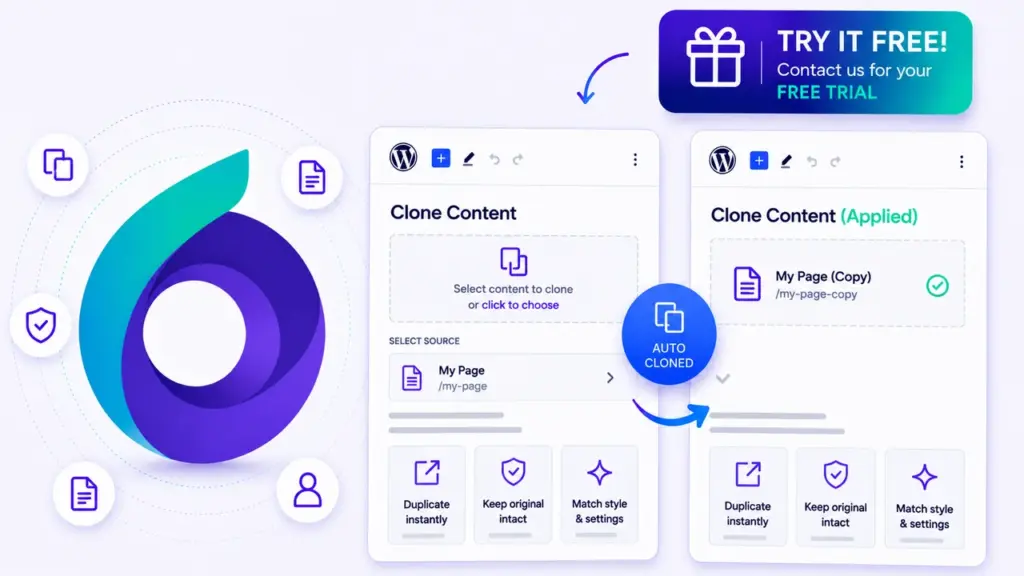
If you need to clone WordPress content, duplicate WordPress posts, or copy WordPress pages without rebuilding everything manually, TheOneWP gives you a faster way to do it. Posts, pages, media files, layouts, metadata, and taxonomy assignments can take time to recreate from scratch. Instead, you can start from something that already works and adapt it faster. TheOneWP includes a built-in Clone module that handles this directly from the WordPress content list screen, with no extra plugin required.
What the Clone WordPress Content Module Does
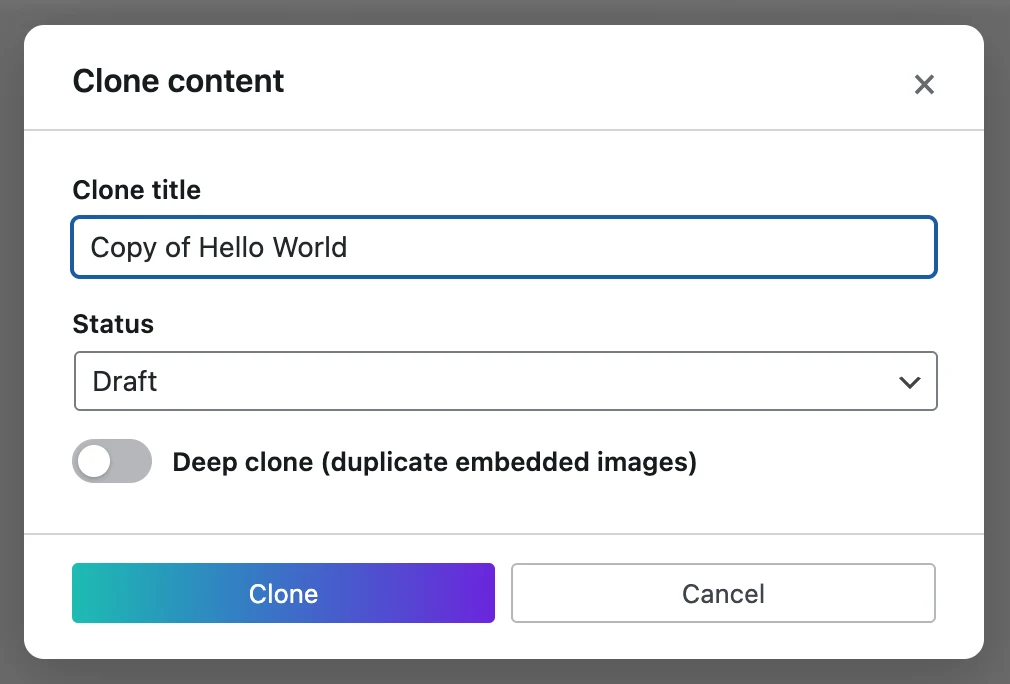
TheOneWP’s Clone Content module adds a Clone action to the row actions inside WordPress list tables. When you click it, a popup appears before TheOneWP creates anything. From there, you can:
- Set a custom title for the duplicate, or leave it blank so TheOneWP can generate one automatically (Copy of [original title]).
- Choose the status of the new content: Draft, Pending, Published, or Private.
- Optionally set a parent page for hierarchical post types.
Once confirmed, TheOneWP creates the duplicate with the full content, metadata, taxonomy terms, and featured image of the original. As a result, you get a ready-to-edit copy instantly.
What Gets Copied When You Clone WordPress Content
A common concern with duplication tools is what actually gets carried over. Fortunately, TheOneWP copies the key content data from the original, including:
- Post content — the full body of the post or page.
- Post excerpt — if present.
- Custom fields and metadata — all post meta values, excluding WordPress internal fields such as
_edit_lock. - Taxonomy terms — categories, tags, and any custom taxonomies assigned to the original.
- Featured image — TheOneWP assigns the same attachment to the new post. It does not duplicate the physical file.
- Menu order, comment status, and ping status — TheOneWP preserves these values from the original.
However, TheOneWP always assigns the new post to the currently logged-in user as author, regardless of who wrote the original.
Deep Clone: Duplicate Embedded Images Too
When you clone WordPress content that contains embedded images inside Gutenberg blocks, the standard clone reuses the same media attachments. That is fine in most cases. However, if you need a fully independent copy — where editing the images in one post does not affect the other — TheOneWP offers a deep clone option.
With deep clone enabled, TheOneWP scans the post content for wp:image blocks. Then, it copies each referenced image file in the uploads folder, creates new attachment entries in the media library, and rewrites all the IDs and URLs inside the duplicated content. As a result, the cloned content becomes a completely standalone copy.
Clone WordPress Media Attachments
The Clone module also works in the Media Library. When you clone an attachment, TheOneWP copies the physical file to a new filename in the same upload directory. Then, it creates a new attachment entry, regenerates all image sizes, and copies the alt text from the original.
In addition, you can provide a custom filename for the copy. If a file with that name already exists, TheOneWP returns an error instead of overwriting it. This keeps your media library clean and predictable.
How to Configure Clone WordPress Content in TheOneWP
Setup takes under a minute. Here is everything you need to know.
Step 1: Open the Content Tab
First, go to TheOneWP in the left sidebar of your WordPress admin area. Then, click the Content tab at the top of the settings page. You will find the Clone Content module listed there.
Step 2: Activate the Module
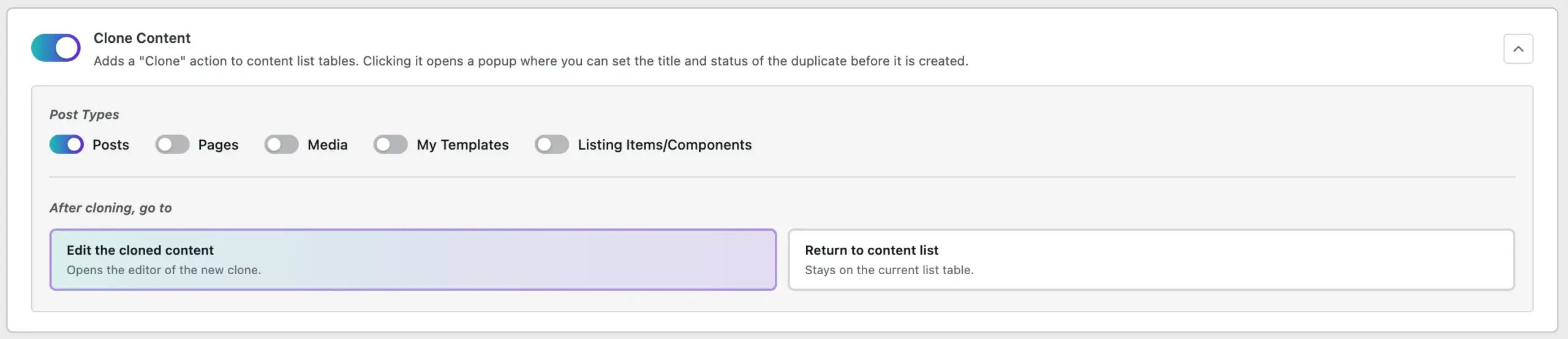
Next, click the toggle next to Clone Content to enable it. The module panel expands and shows all available options.
Step 3: Choose Post Types
After that, select which post types should have the Clone action available. You can enable it for:
- Posts
- Pages
- Media (attachments)
- Any custom post type registered on your site
Unlike many settings in TheOneWP that apply to all post types when nothing is selected, the Clone module requires at least one post type to be checked. Therefore, if you select nothing, the module stays inactive even when the main toggle is on.
Step 4: Set the Redirect Behaviour
Then, under After cloning, go to, choose what happens immediately after TheOneWP creates a clone:
- Edit the cloned content — opens the editor for the new duplicate so you can start editing right away. This is the default.
- Return to content list — takes you back to the list table, which is useful when cloning multiple items in sequence.
Step 5: Save
Finally, click Save Changes. The Clone action will appear immediately in the row actions of your selected post type list tables.
How to Clone WordPress Content: Step by Step
Once the module is active, using it is straightforward.
- Go to the list table of the enabled post type — for example, Posts or Pages.
- Hover over any item. A row of actions appears below the title.
- Click Clone.
- A popup appears. Enter a title for the duplicate, choose its status, and optionally select a parent page.
- If you want to copy embedded images as independent files too, enable Deep clone images.
- Finally, click Clone to confirm.
TheOneWP creates the duplicate and then follows your redirect setting. It either opens the editor or returns you to the list.
When to Clone WordPress Content
The ability to clone WordPress content is useful in more situations than it might seem at first. For example, you can use it for:
- Template-style pages — build one page with the correct layout and settings, then clone it as a starting point for similar pages.
- Recurring content — blog post series, weekly updates, or report templates that share the same structure.
- A/B testing — duplicate a page, make changes to the copy, and compare performance without touching the original.
- Staging new content — clone a published page into a draft, make edits, then publish the updated version.
- Custom post types — product pages, portfolio entries, event listings, or any CPT where content follows a repeatable structure.
Why Clone WordPress Content Without a Dedicated Plugin
There are standalone plugins built specifically for duplicating WordPress content. They work, but they add one more plugin to your installation. That means one more thing to keep updated, one more potential conflict, and one more dashboard menu entry you did not ask for.
With TheOneWP, the ability to clone WordPress content is part of a modular system that already handles dozens of other tasks. You activate only what you need, and everything stays in one place. Therefore, you avoid redundancy, plugin sprawl, and unnecessary admin clutter.
Final Thought
Duplicating content manually — copying text, reassigning categories, re-uploading images, and resetting metadata — is the kind of repetitive work that accumulates quietly and wastes real time. The Clone module removes that process entirely.
With TheOneWP, you can clone WordPress content in a single click, with full control over the title, status, parent, and image behaviour before TheOneWP creates the duplicate. It is a small feature, but it makes a noticeable difference.